
Phone mail client setup and server settings
Our webmail service is fully compatible with both Android and iPhone mail applications.
The default mail app for Android is Gmail, and for iPhone it is Apple Mail. These apps are typically pre-installed on your device and support easy setup using IMAP or POP connections to your email account.
Email server settings
| Settings | IMAP | POP |
|---|---|---|
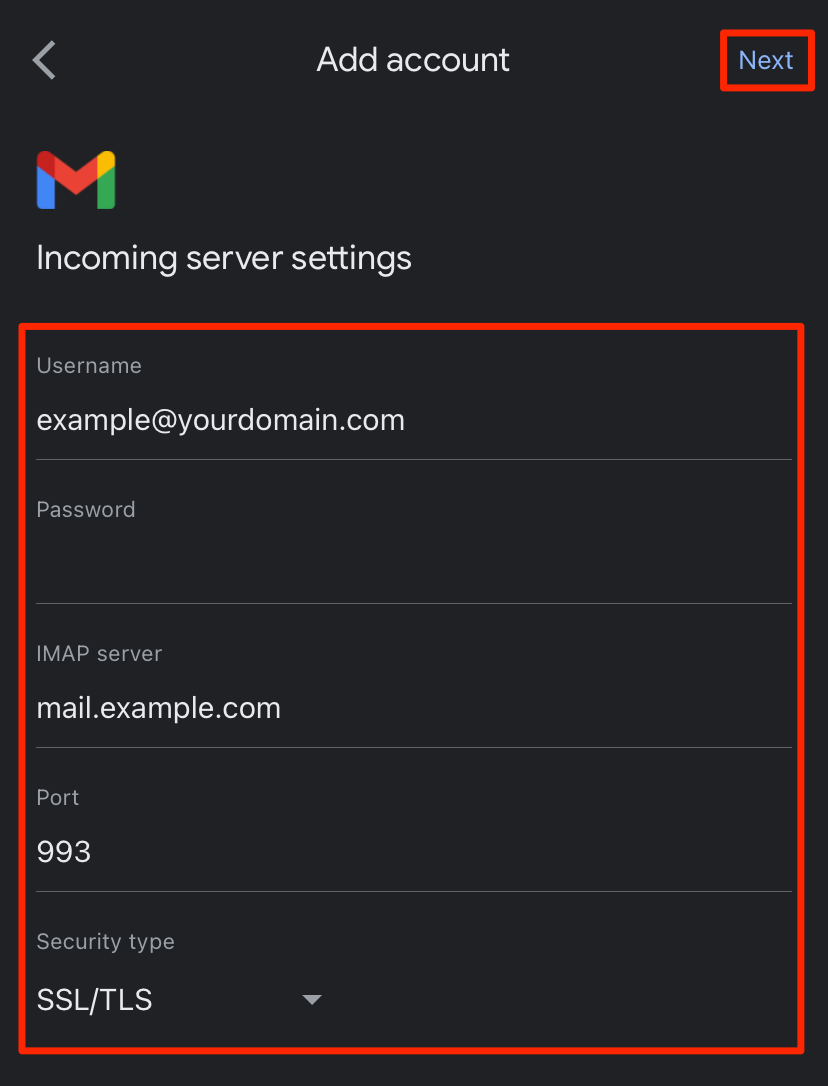
| Incoming server | mail.example.com | mail.example.com |
| Incoming server ports | SSL: 993 Non-SSL: 143 |
SSL: 995 Non-SSL: 110 |
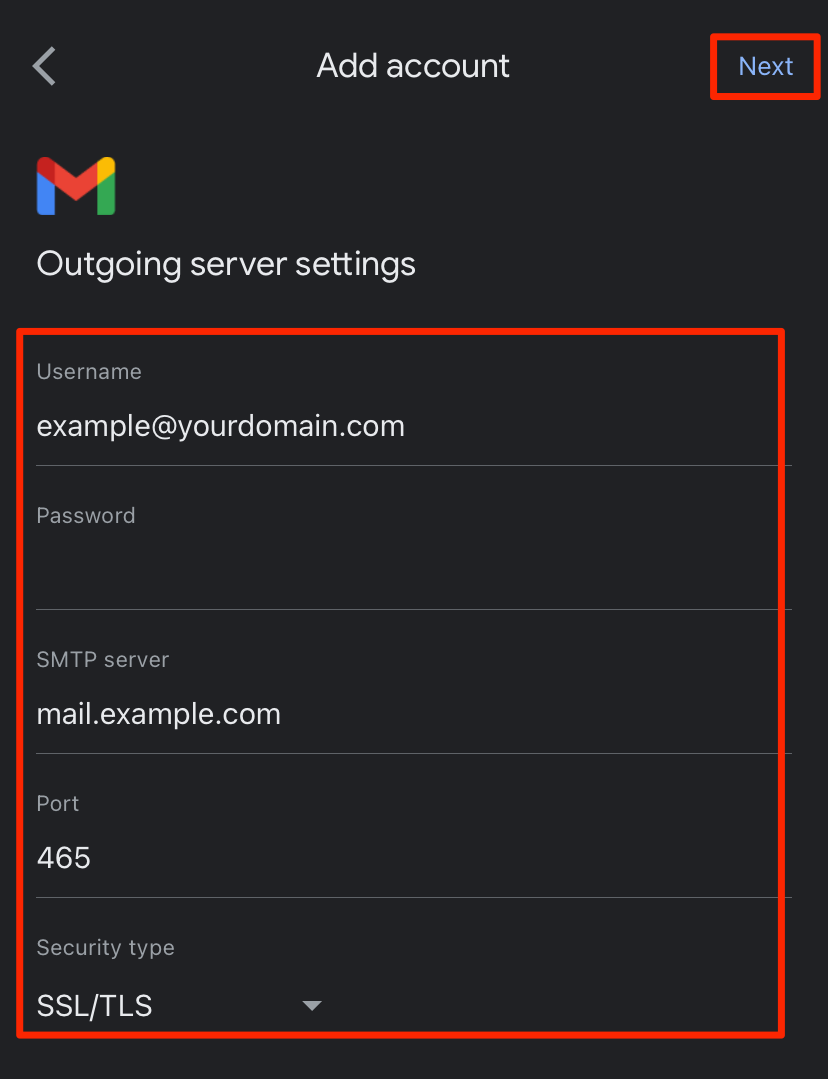
| Outgoing server | mail.example.com | mail.example.com |
| Outgoing server ports | SSL: 465 Non-SSL: 25 or 587 |
SSL: 465 Non-SSL: 25 or 587 |
Apple Mail mobile setup
-
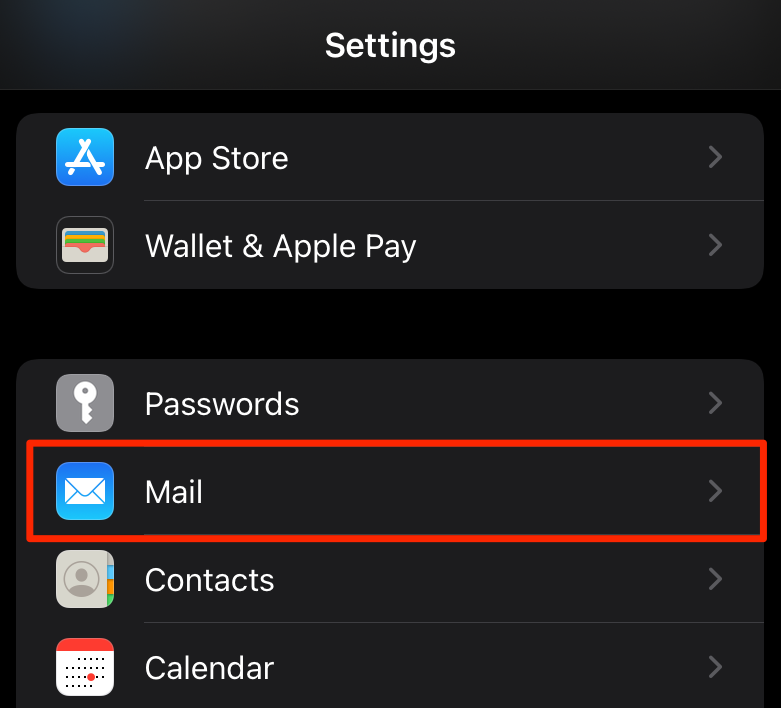
Open Settings on your phone.

-
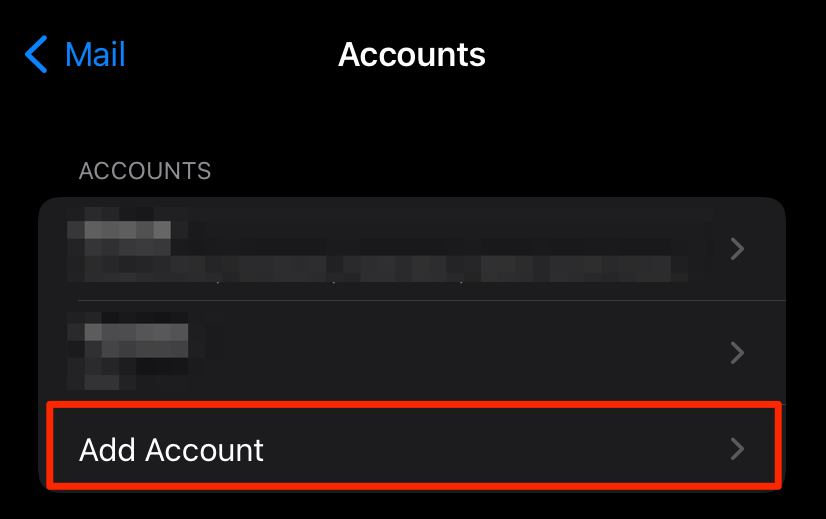
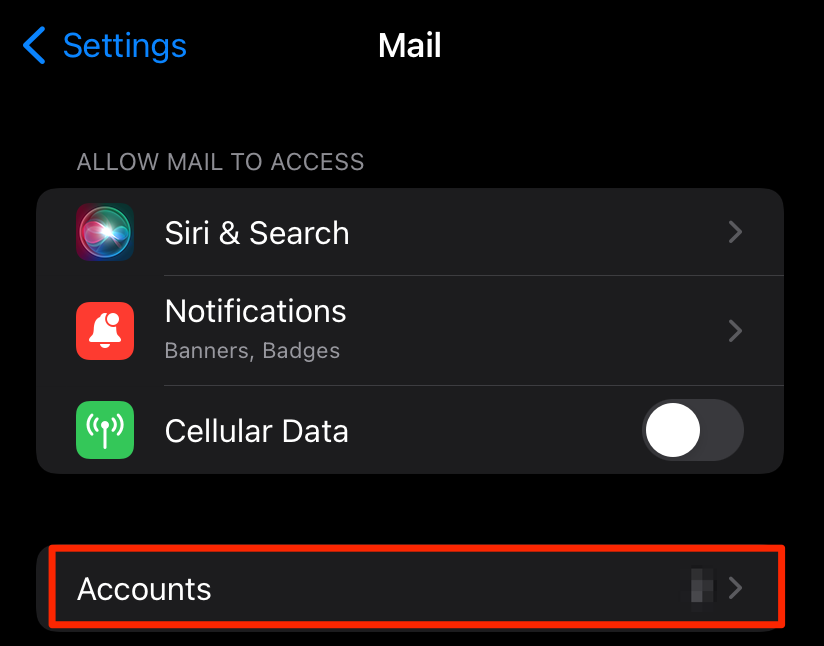
Scroll down and select Mail, then choose Accounts.
-
Select Add account.
-
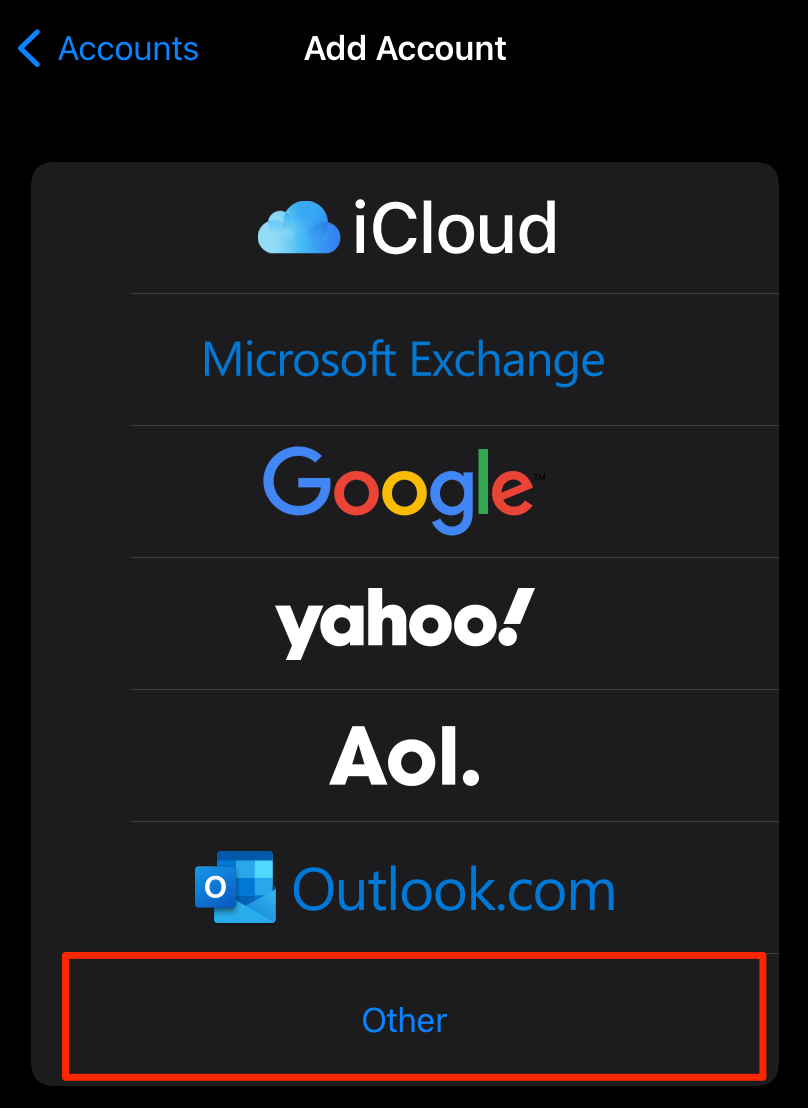
Select Other.
-
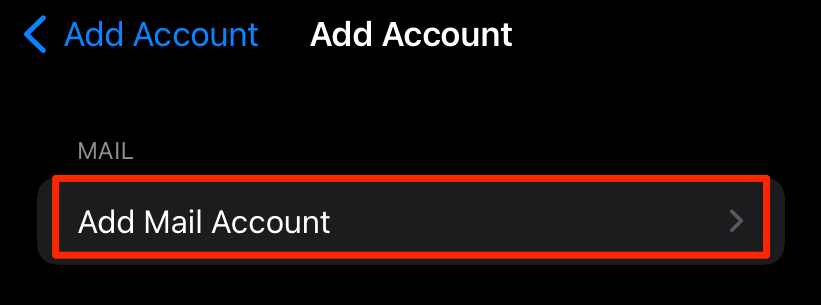
Select Add mail account.
-
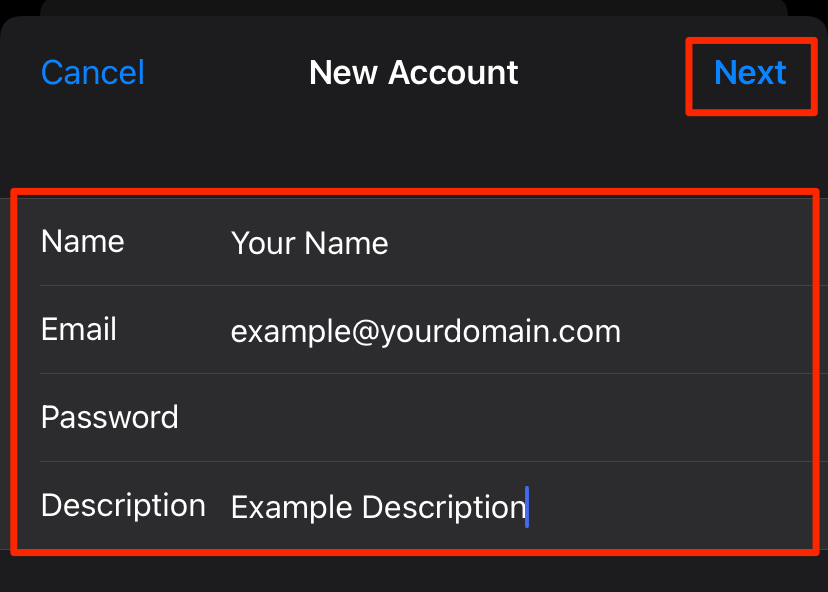
Enter your email details, including your password, then tap Next.
-
Choose IMAP or POP, fill in your server settings, then tap Next.
Note: iPhone labels outgoing mail server settings as optional, but they are required to send mail. -
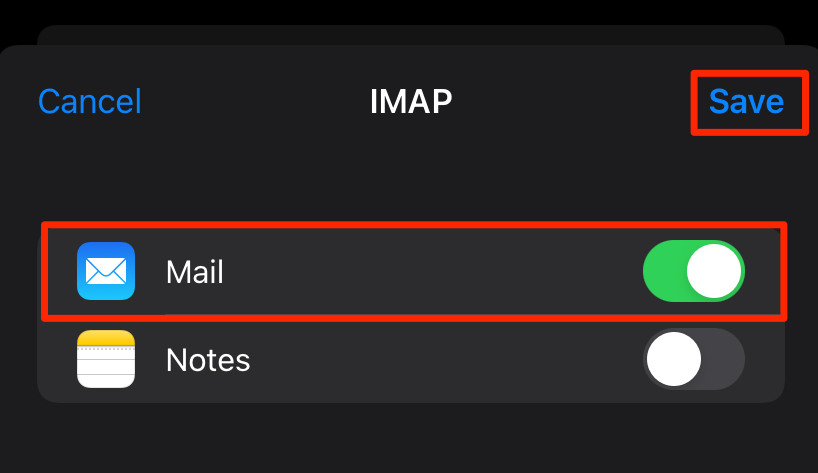
Toggle Mail to On, then tap Save.
Gmail Android mobile setup
-
Open the Gmail app.
-
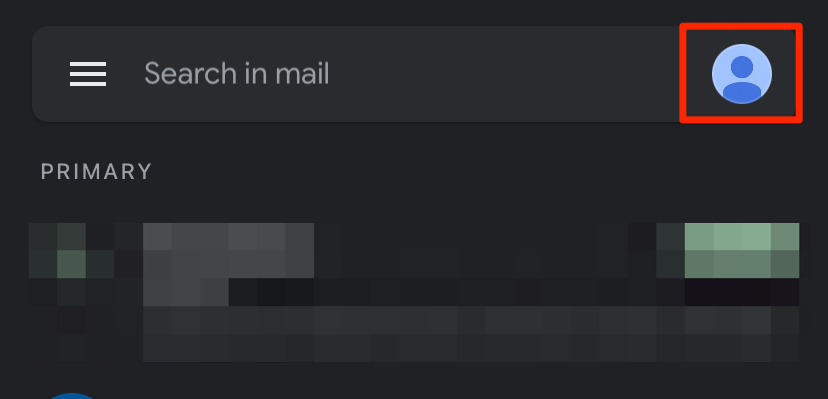
Tap your profile picture.
-
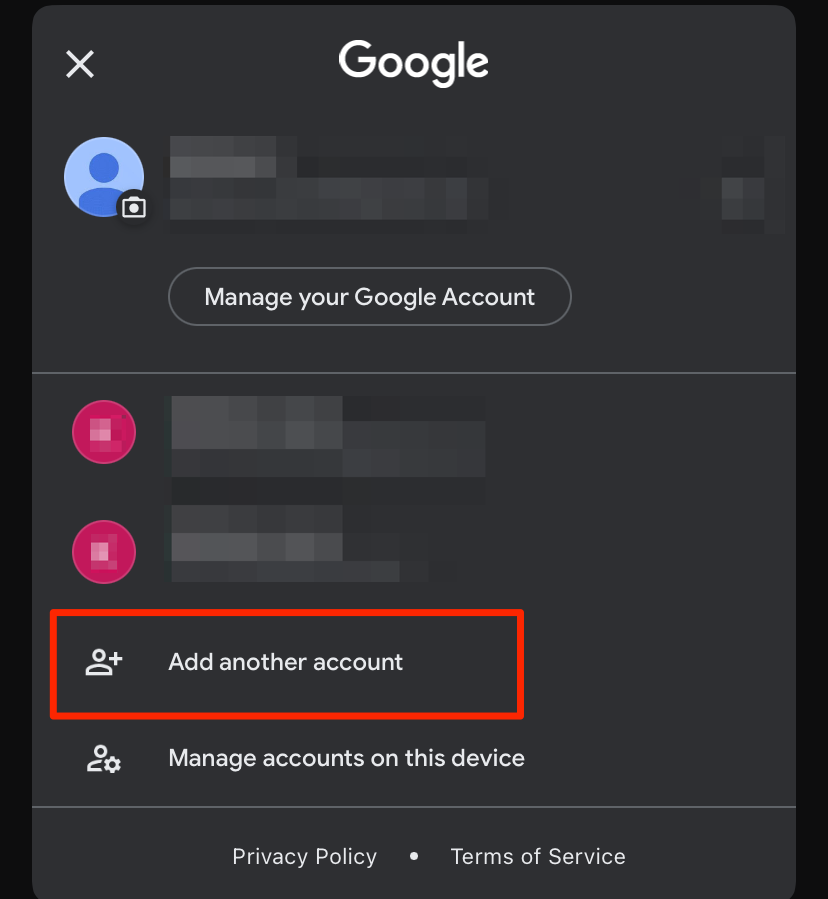
Tap Add another account.
-
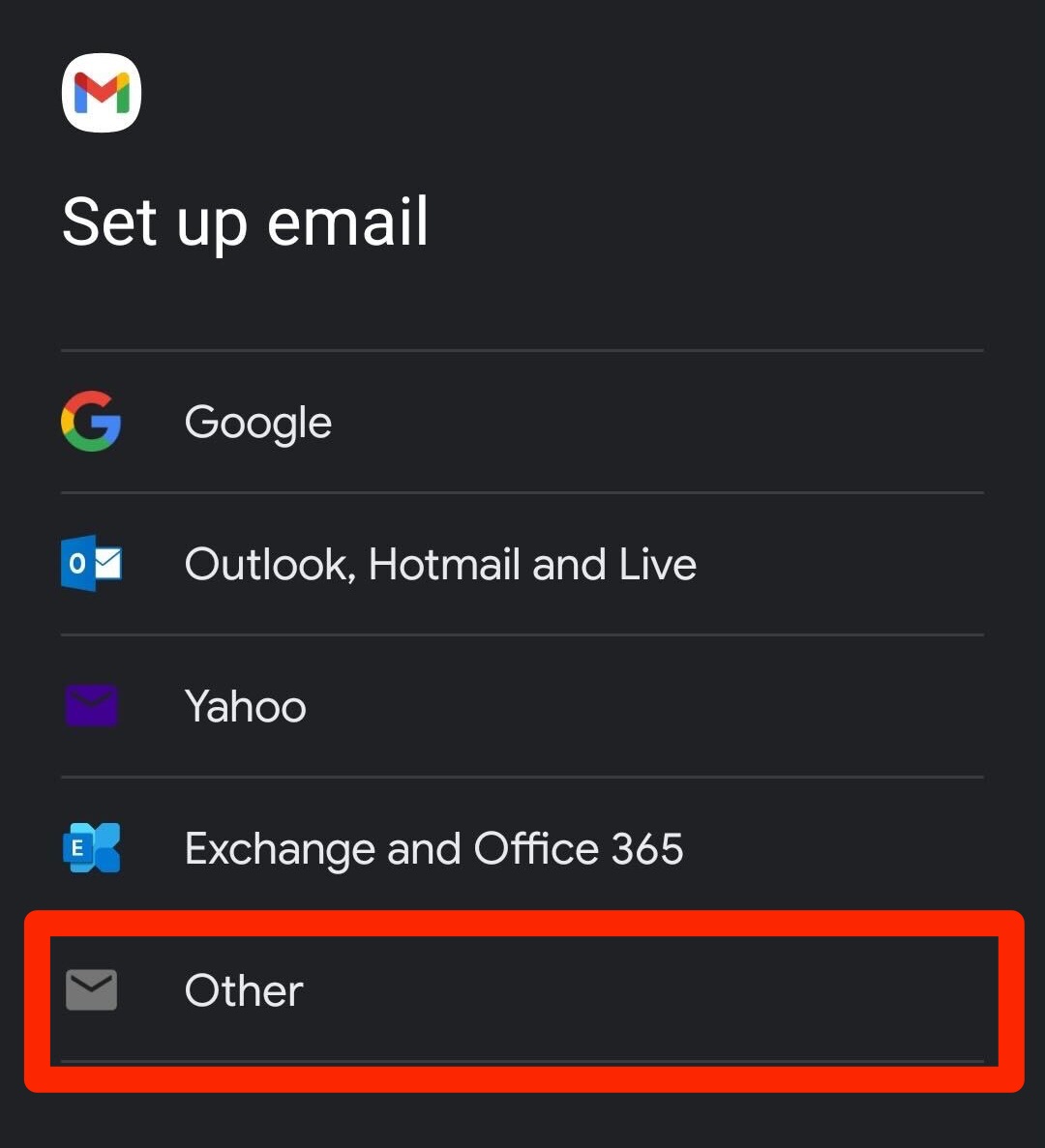
Tap Other.
-
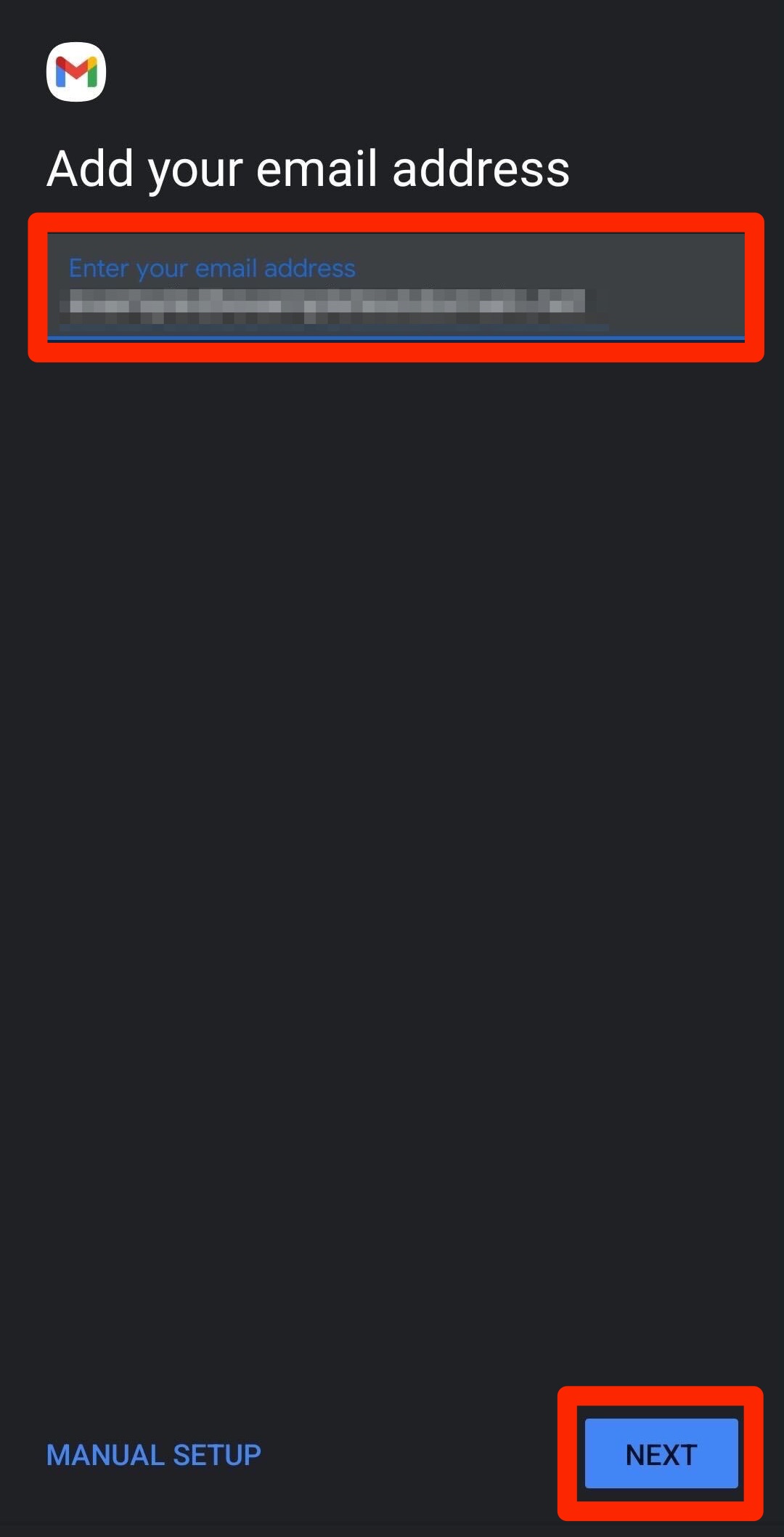
Enter your full email address → Next.
-
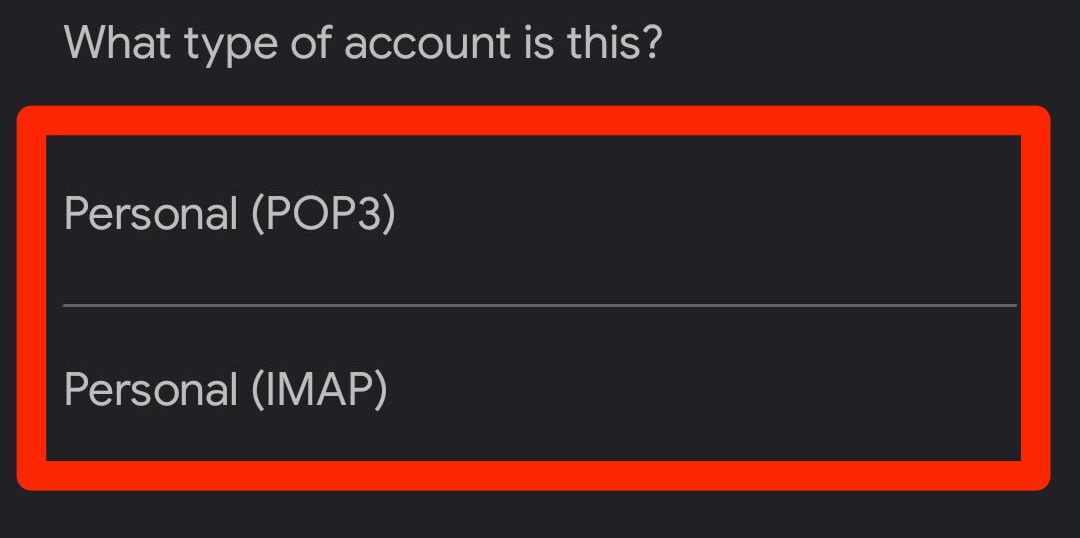
Select IMAP or POP.
-
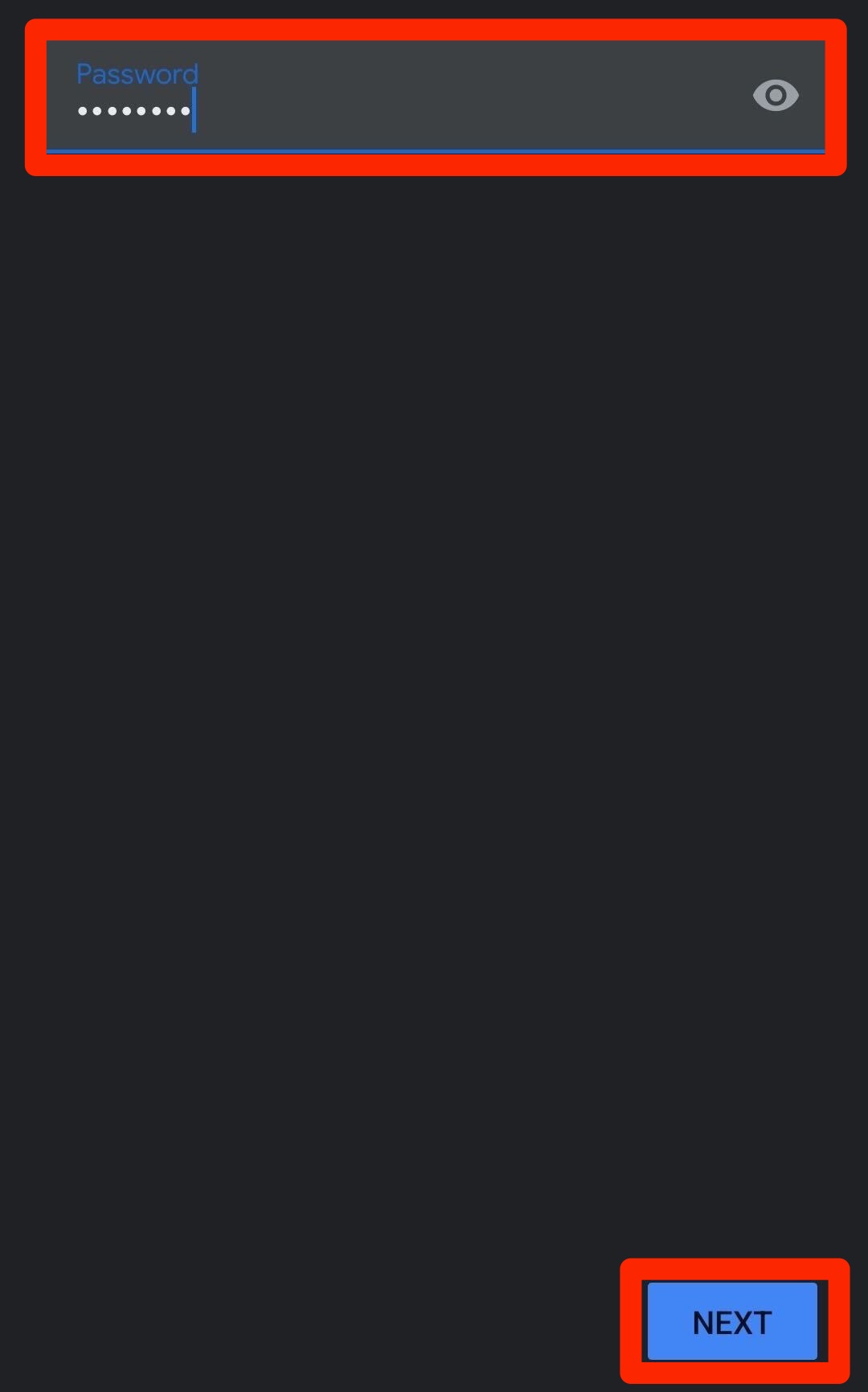
Enter your email password → Next.
-
Enter incoming server settings → Next.
-
Enter outgoing server settings → Next.
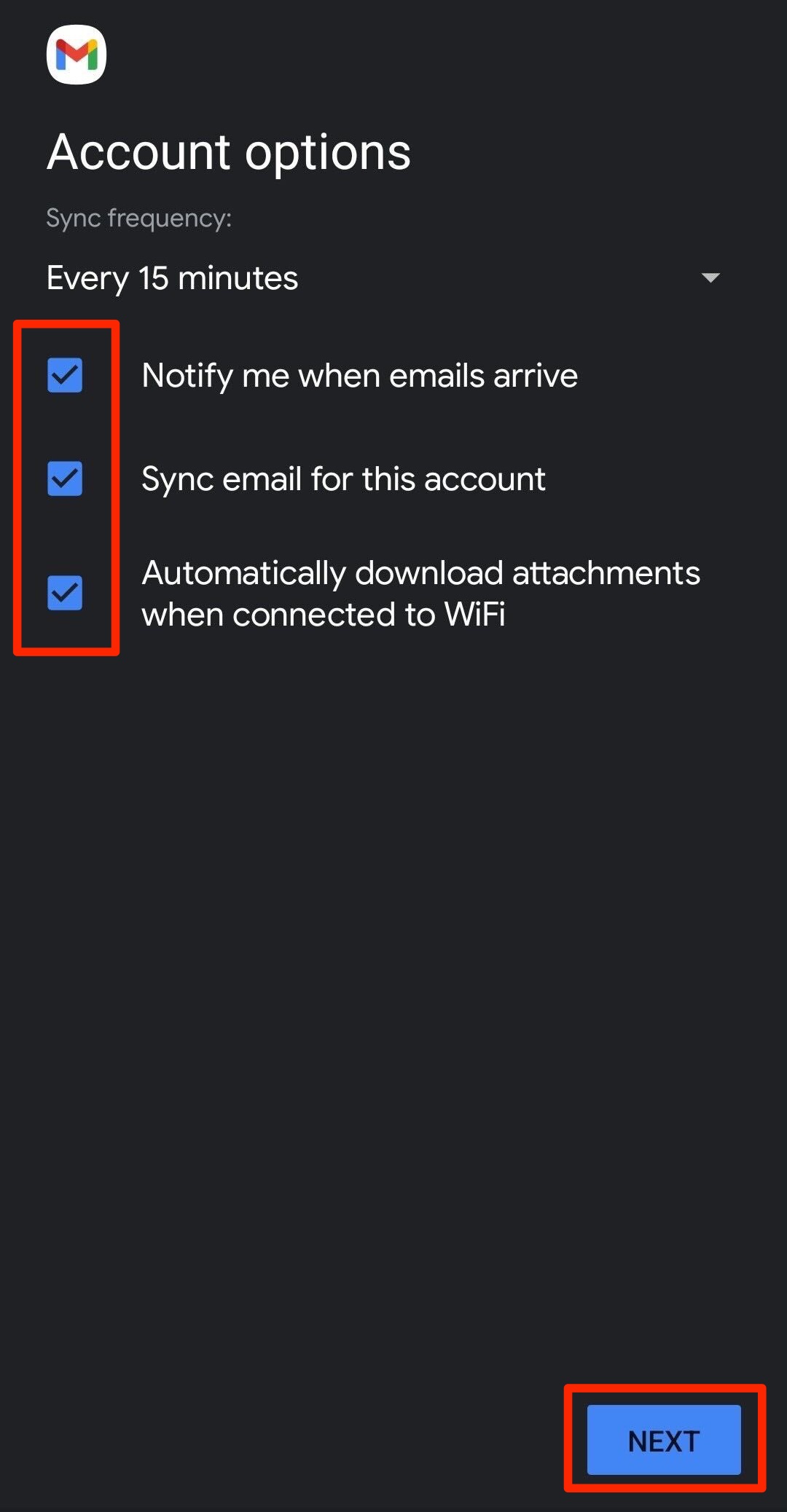
-
Adjust account options → Next.
💡 Pro Tips
- Ensure your internet connection is stable during setup.
- Double-check your email server settings if you encounter issues.
- Restart your phone if the setup fails to refresh the email app.
If you need further assistance, please contact our support team. 😊